

Deploy from Claude
Connect Claude to Deplixo and deploy apps without ever leaving the conversation. No copy-paste, no terminal, no extra tabs — just ask Claude to build something and ship it.
Here's the whole process
There are a few steps below, but each one is short and simple. Here's what you'll do:
Setup (one-time)
Try it out
That's it. The detailed steps below walk you through each part with screenshots.
Set up
Once Deplixo is approved in Anthropic's Connector Marketplace, setup will be a single click. Until then, you'll add it as a custom connector — it takes about 30 seconds and works exactly the same way. Follow the steps below.
Part 1: Add the Deplixo Connector
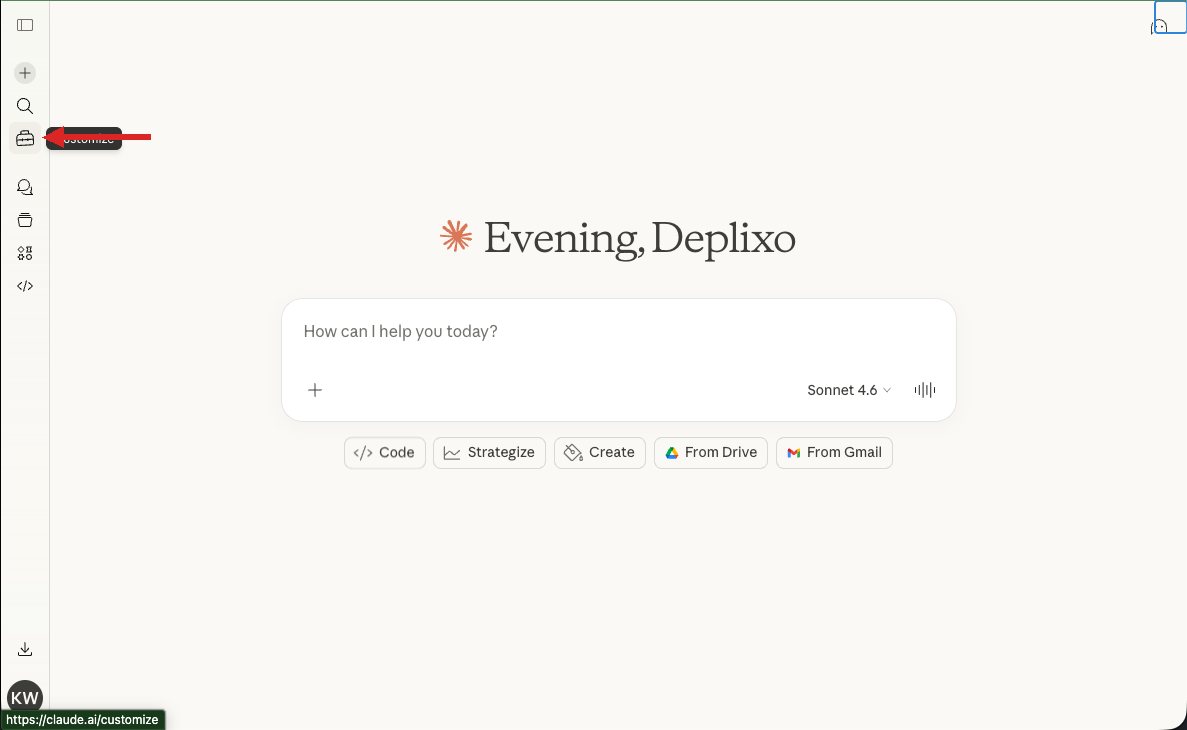
Open claude.ai and click the Customize icon
Go to claude.ai. In the left sidebar, click the Customize icon (it looks like a small briefcase).
See screenshot
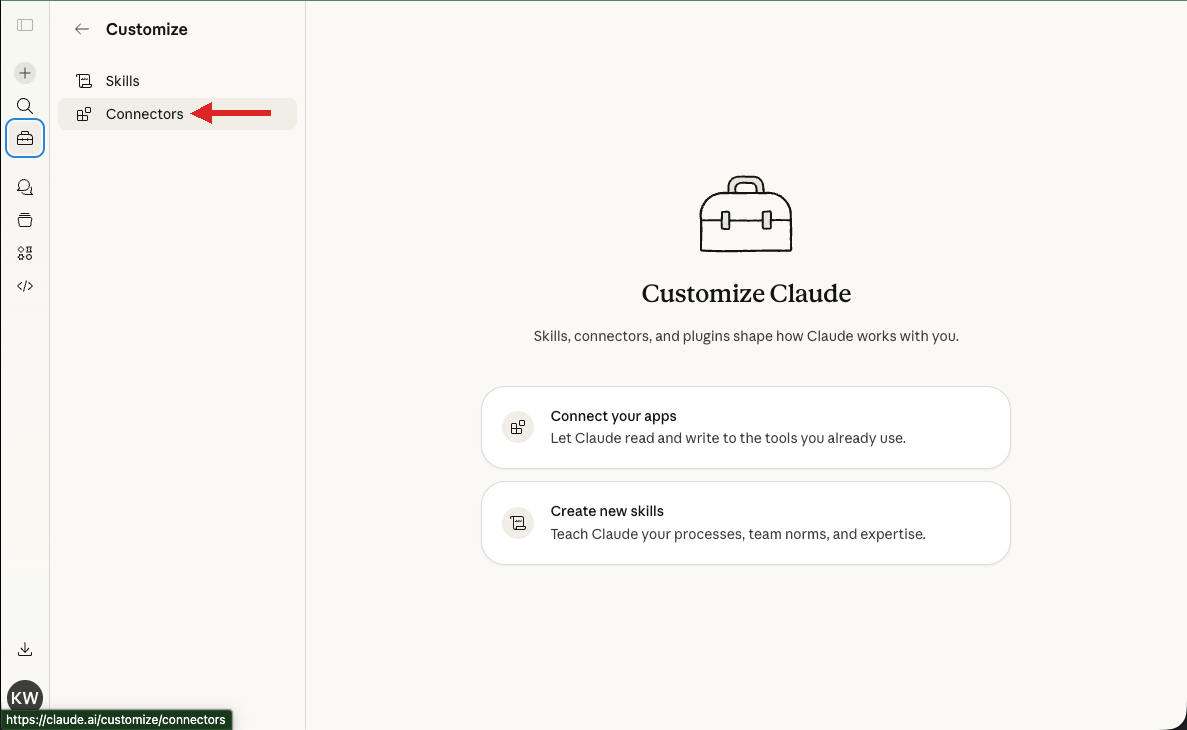
Click Connectors
On the Customize page, click Connectors in the left sidebar.
See screenshot
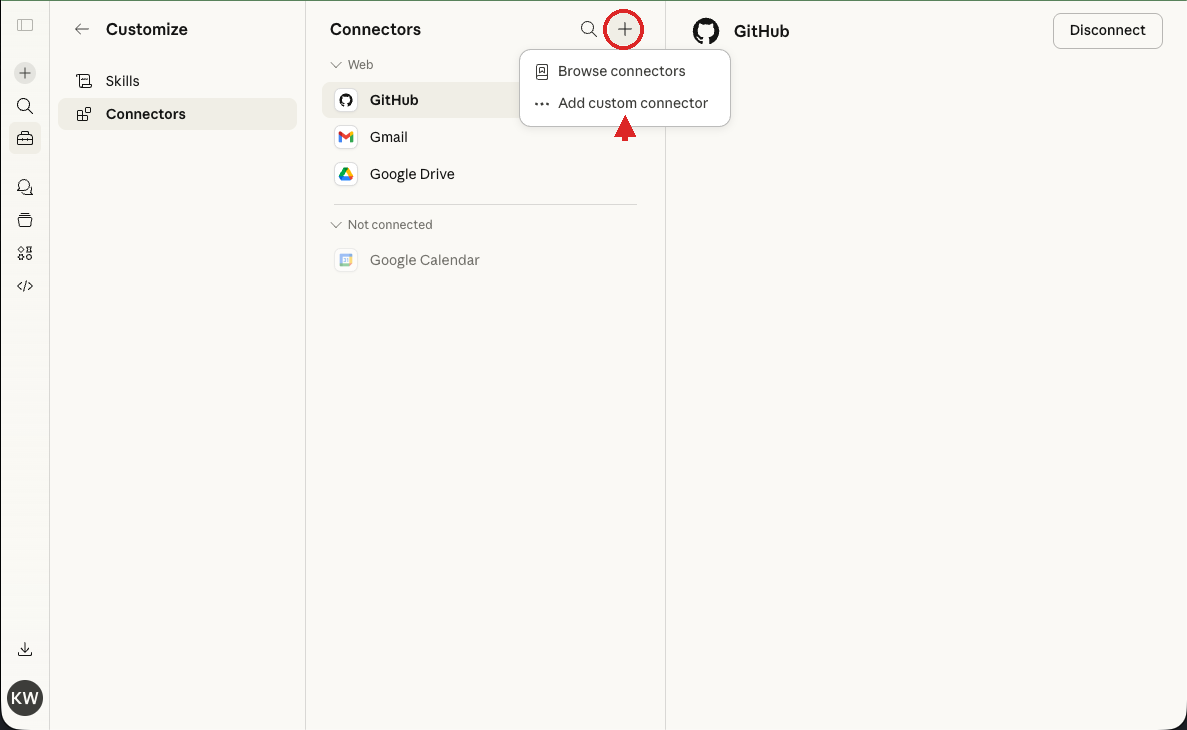
Click the + button, then "Add custom connector"
At the top of the Connectors panel, click the + button. A small dropdown will appear. Select "Add custom connector."
See screenshot
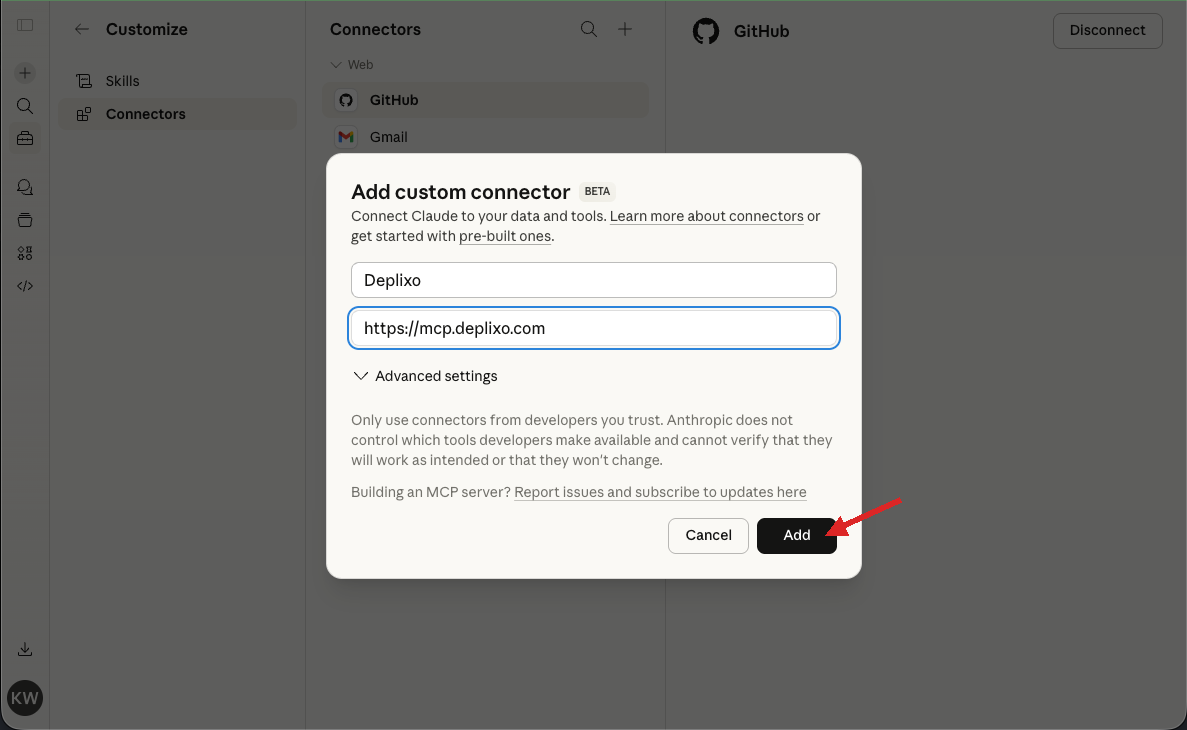
Fill in the connector details
In the dialog that appears, enter:
- Name:
Deplixo - Remote MCP server URL:
https://mcp.deplixo.com
Then click Add.
See screenshot
You're connected!
Deplixo now appears in your connectors list. You'll see its tools: deplixo_deploy, deplixo_enhance, and others. The permissions default to Always allow, which is what you want — it lets Claude deploy without asking you each time.
See screenshot
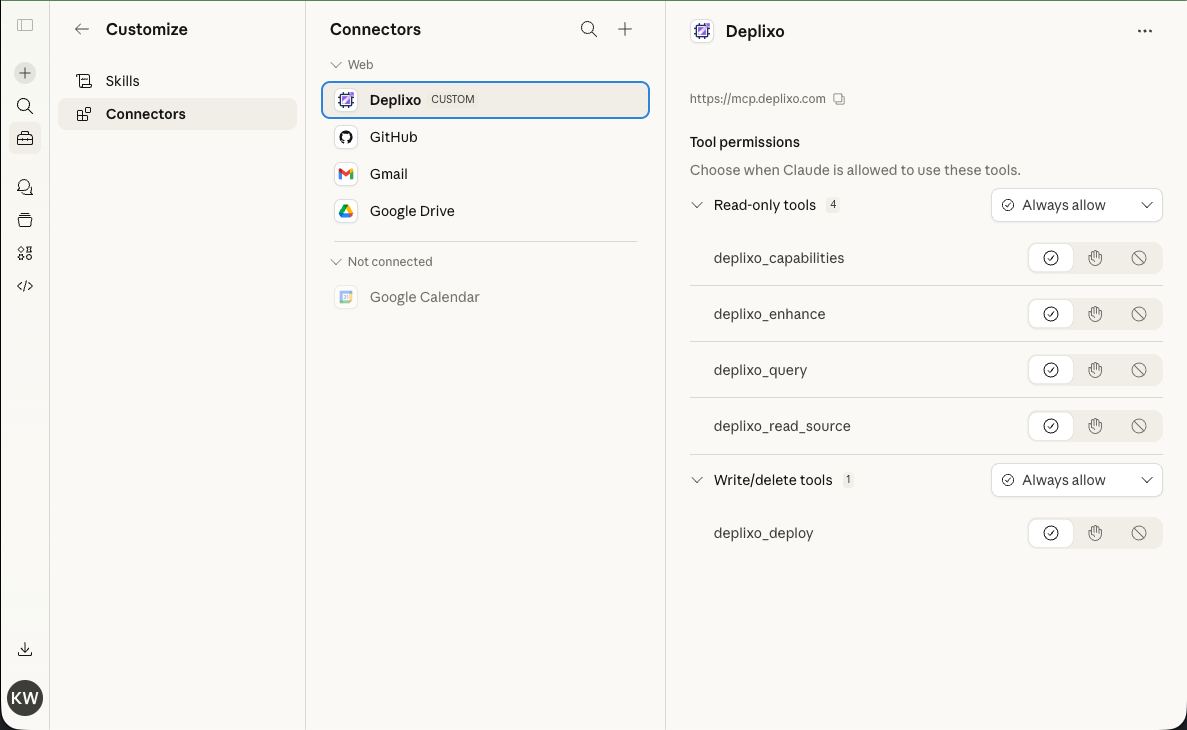
That's it. You're connected!
You'll never need to do that again. Now let's take it for a spin.
Try it out
Part 2: Build & Deploy Your First App
Now for the fun part. Start a new conversation and try it out.
Enter "Make me a Hello World App"
Start a new chat and type that in. Claude will build the app for you.
Once done and you like it, type "deploy to deplixo"
Claude will call the Deplixo deploy tool and push your app live.
When you get the link, click it to save it in Deplixo
Claude will give you a save link. Click it to save your app. Unsaved apps are deleted after 1 hour, so don't skip this step!
Tips for better results
Describe the app, not the code
You don't need to say "write HTML." Just describe what you want: "Build a recipe organizer where I can save recipes by category and search them."
Mention persistence if you need it
If your app should save data, say so: "Save my data so it persists across sessions." Claude will use the right Deplixo component automatically.
Iterate in the same conversation
Don't start a new conversation for small changes. Claude already has the context, so updates are instant.
Don't forget your super powers
Every Deplixo app comes with built-in primitives that handle the hard stuff. Just describe what you need and Claude will wire it up automatically.
Save data that persists across sessions and syncs across devices.
"Build a recipe organizer where I can save recipes by category. Save my data so it persists."
Add AI-powered features without API keys or billing setup.
"Make a writing assistant that helps me improve my emails. It should suggest rewrites and tone adjustments."
Beautiful charts and graphs, ready to go.
"Build a personal finance tracker with charts showing my spending by category over time."
Multi-user apps with live sync — no backend needed.
"Create a shared whiteboard where multiple people can draw and see each other's changes in real time."
Let users upload images, documents, and more.
"Build a mood board app where I can upload images and arrange them on a canvas."
Plus maps, QR codes, PDF export, sound effects, CSV export, and a lot more. See all the building blocks →
Using Deplixo in Claude Code (CLI)
If you use Claude Code (the CLI tool), you can add Deplixo as an MCP server in your configuration:
Option A: Global config
Add this to ~/.claude/settings.json to make Deplixo available in all your Claude Code sessions:
{
  "mcpServers": {
    "deplixo": {
      "type": "streamablehttp",
      "url": "https://mcp.deplixo.com/"
    }
  }
}
Option B: Per-project config
Add the same block to .mcp.json in any project directory to enable Deplixo for that project only.
Once configured, just ask Claude Code to build and deploy an app. It works the same way as on claude.ai — Claude writes the code and calls the deploy tool.
Prefer to use ChatGPT?